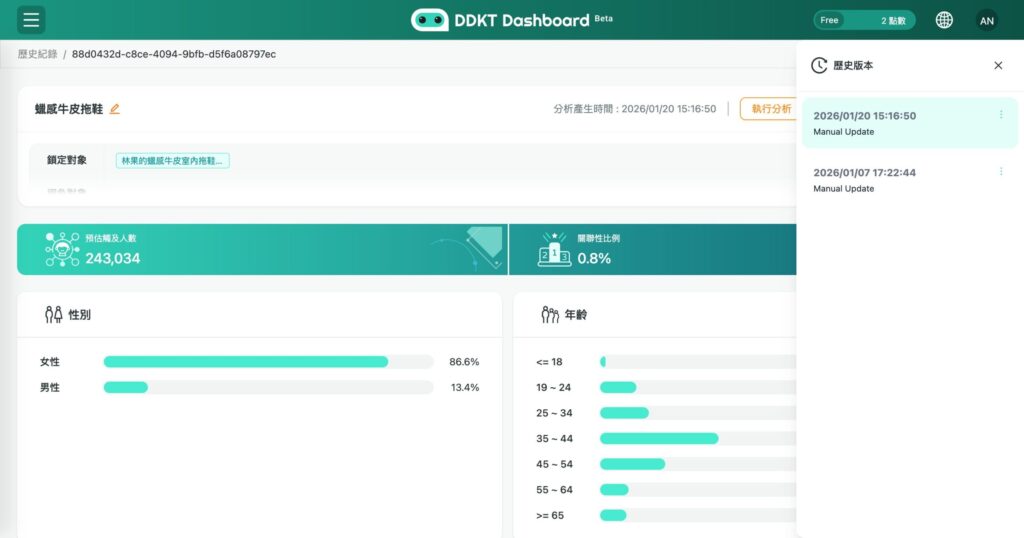
From any completed analysis report in DDKT History, you can re-run the analysis with the same or scheduled settings, share results via a shareable link, copy the analysis setup to Explore for editing, or browse previous versions of the same report.
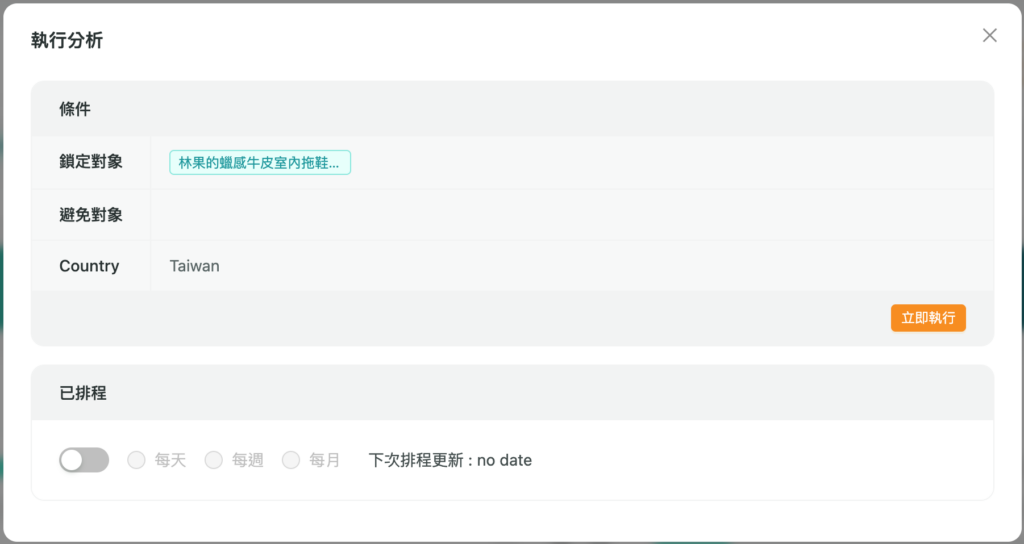
1. Re-run an Analysis (Run Analysis) #
Click “Run Analysis” in the top right corner of any report to re-run it using the same conditions. Each re-run consumes one Credit. You can choose between two execution modes:
Each scheduled execution consumes one Credit. The Next Execution Update field displays the date of the next scheduled run.
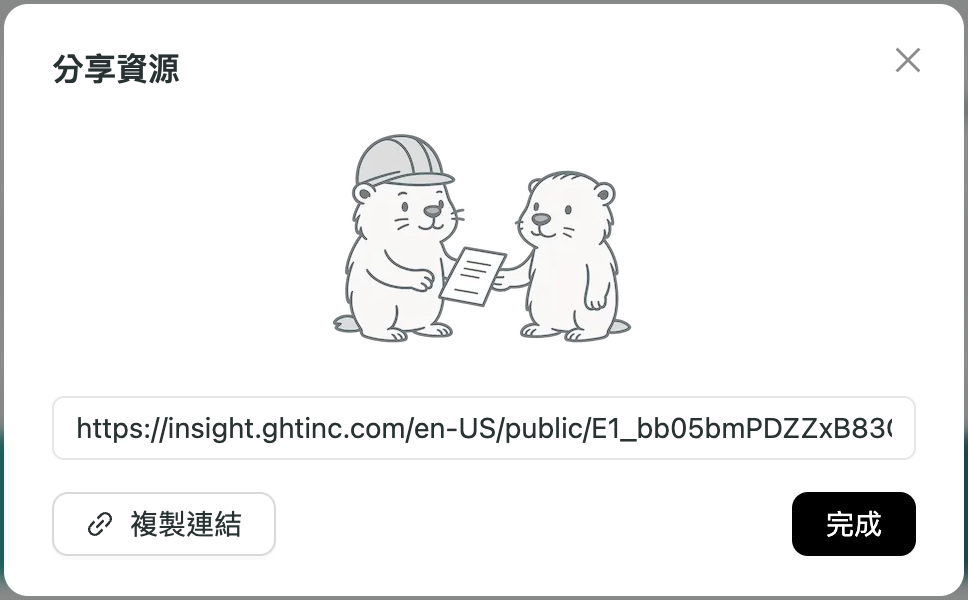
2. Share an Analysis Report #
Click the Share button on the report page to generate a shareable link. You can send this link to team members or clients to give them access to the report without requiring a DDKT login.
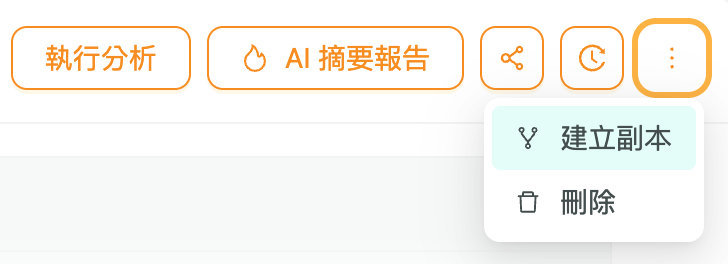
3. Copy an Analysis to Explore (Make a Copy) #
Click “Make a Copy” to duplicate the current analysis settings directly to the Explore page. You can then edit the description or settings before running a new analysis.
4. View Version History #
Click the “History” button on the report page to open the version history sidebar. You can switch between different versions to compare analysis results from different time points. Individual versions can also be deleted from this panel.